10 Most Common WordPress Issues and Their Solutions
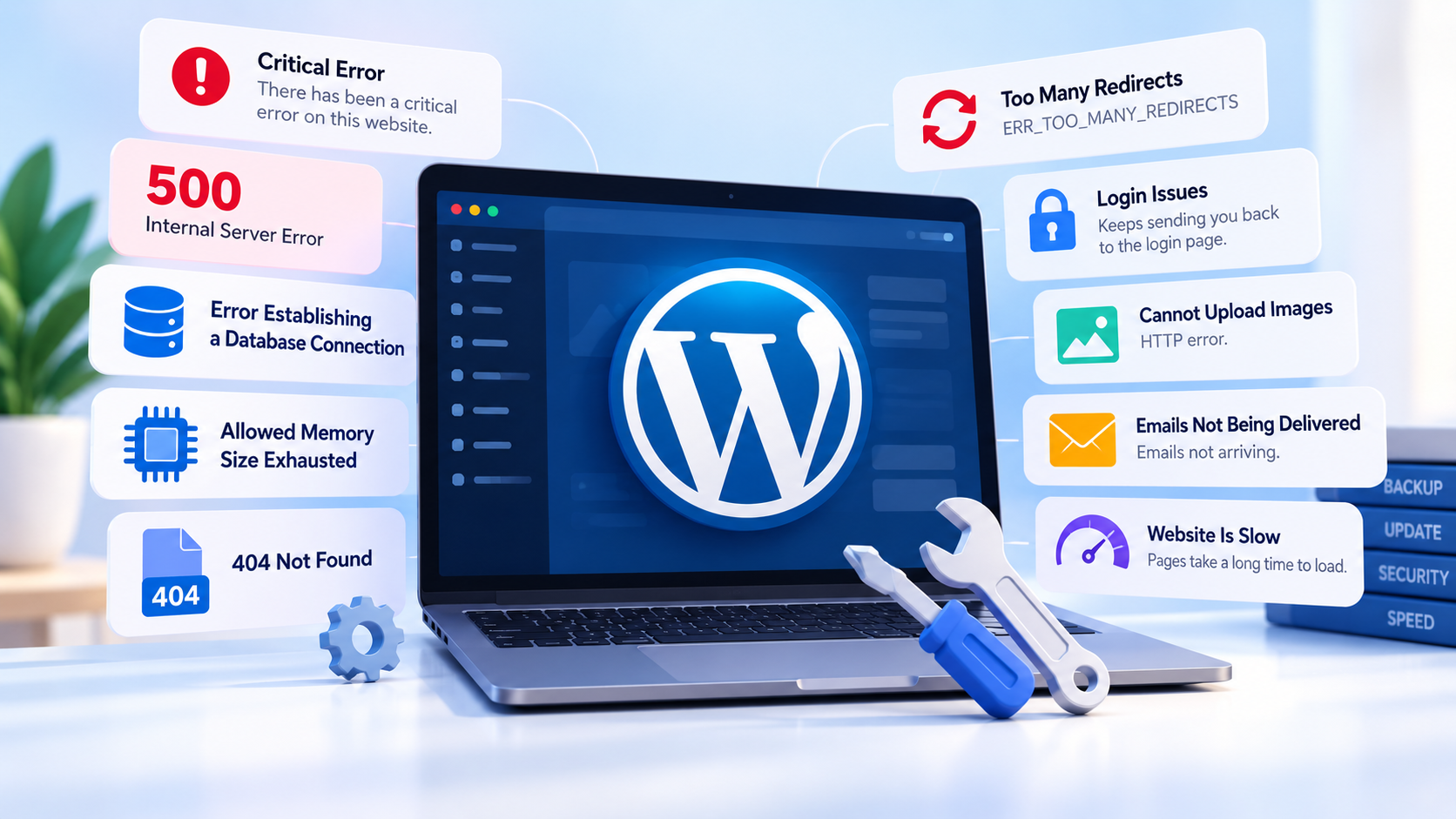
WordPress powers millions of websites, from personal blogs and business websites to large online stores and membership platforms. Its flexibility is one of its greatest strengths—but that flexibility also means that problems can occasionally appear.
A website may suddenly display a critical error, return a 500 response, stop loading pages, refuse to send emails, or become unexpectedly slow. In many cases, the underlying problem is not WordPress itself but a plugin, theme, PHP configuration, database issue, server limitation, or a recent change.
The good news is that most common WordPress problems can be diagnosed systematically.
In this guide, we’ll cover 10 of the most common WordPress issues, explain what usually causes each one, and show you practical ways to troubleshoot and fix them.
Before making changes: If possible, create a complete backup of your website and database. If you have a staging environment, test significant changes there first. WordPress itself recommends having a backup or staging environment before modifying a site.
Before Troubleshooting: Don’t Guess
When a WordPress website breaks, the instinct is often to start disabling plugins, changing settings, and editing files until something works.
That can make the situation worse.
A better approach is:
Identify → Isolate → Fix → Test → Prevent
First determine what changed or what the error actually says. Then isolate the component responsible for the problem. Apply the smallest appropriate fix, test the website, and finally address the underlying cause so the issue doesn’t return.
WordPress also provides a built-in Tools → Site Health screen that can identify configuration problems and other issues affecting your website.
1. “There Has Been a Critical Error on This Website”
What you see
You may see a message similar to:
“There has been a critical error on this website.”
This is one of the most recognizable WordPress errors.
It usually means that PHP encountered a fatal error that prevented WordPress from completing the request.
Common causes
A critical error can be caused by:
- A broken plugin
- An incompatible theme
- Custom PHP code
- An incompatible PHP version
- Insufficient memory
- Corrupted files
- A plugin or theme update that introduced an error
WordPress has included Recovery Mode since version 5.2. When a fatal error is detected, WordPress can pause the component responsible for the problem for the affected administrator session and provide a recovery link by email.
How to fix it
Step 1: Check your WordPress administrator email
If Recovery Mode was triggered, WordPress may have sent the administrator a message containing a special login link.
Open that email and follow the Recovery Mode link.
Once inside, WordPress may identify the plugin or theme responsible for the failure.
Step 2: Disable the problematic plugin or theme
If WordPress identifies a specific plugin, deactivate it.
If the problem started after activating or updating a theme, temporarily switch to a default WordPress theme.
Step 3: Check the debug log
If you cannot access Recovery Mode, WordPress’s debugging system can provide more information.
A typical configuration is:
define( 'WP_DEBUG', true );
define( 'WP_DEBUG_LOG', true );
define( 'WP_DEBUG_DISPLAY', false );
This records errors in:
/wp-content/debug.logwhile preventing the errors from being displayed publicly.
WordPress recommends using debugging tools carefully and not exposing PHP errors to visitors on a production website.
Important
Once you’ve finished troubleshooting, don’t leave debugging configured in a way that exposes errors publicly.
2. HTTP 500 Internal Server Error
What you see
Your browser displays something like:
500 Internal Server Error
The message is usually generic and doesn’t tell you exactly what went wrong.
Common causes
A 500 error can originate from several layers of your website:
- Broken
.htaccessrules - PHP fatal errors
- Plugin conflicts
- Theme problems
- PHP configuration problems
- Memory exhaustion
- Incorrect server configuration
- File permissions
- Hosting-level issues
How to troubleshoot
Start with the simplest possibilities.
Step 1: Check whether the problem started after a change
Ask:
- Did you install a plugin?
- Did you update a plugin?
- Did you change your theme?
- Did you modify
.htaccess? - Did you change PHP versions?
- Did you migrate the website?
The timing can often reveal the culprit.
Step 2: Temporarily disable plugins
If you have dashboard access, deactivate plugins and test the website.
If you cannot access WordPress, you can use FTP or your hosting File Manager to rename:
/wp-content/plugins/to something such as:
/wp-content/plugins-disabled/This prevents WordPress from loading the plugins.
If the website immediately starts working, restore the folder name and reactivate the plugins one by one until you identify the problematic one.
WordPress documents this approach as a standard troubleshooting method for plugin conflicts.
Step 3: Check .htaccess
On Apache-based hosting, a corrupted .htaccess file can cause server errors.
Before changing it, make a backup.
If the website works after temporarily renaming .htaccess, regenerate the WordPress rewrite rules by going to:
Settings → Permalinks
and clicking Save Changes.
WordPress’s official documentation recommends refreshing the permalink settings when rewrite rules are causing problems.
If it still doesn’t work
Check your server’s PHP error logs or ask your hosting provider to inspect the server logs.
A 500 error is a symptom, not a diagnosis. The server log usually provides the missing detail.
3. Error Establishing a Database Connection
What you see
Instead of your website, WordPress displays:
Error establishing a database connection
This means WordPress cannot successfully communicate with its database.
Why does WordPress need a database?
WordPress stores important information in the database, including:
- Posts
- Pages
- Users
- Settings
- Orders
- Plugin data
- Theme settings
- Metadata
Without database access, WordPress cannot build the website normally.
Common causes
The problem may be caused by:
- Incorrect database credentials
- Incorrect database hostname
- Database server outage
- Database connection limits
- Corrupted database tables
- Hosting problems
- A compromised website
How to troubleshoot
Open:
wp-config.phpand check the database configuration:
define( 'DB_NAME', 'database_name' );
define( 'DB_USER', 'database_user' );
define( 'DB_PASSWORD', 'database_password' );
define( 'DB_HOST', 'localhost' );
The exact DB_HOST value depends on your hosting environment, so don’t automatically assume it must be localhost.
Check the database itself
Log into your hosting control panel and confirm that:
- The database exists.
- The database user exists.
- The user has access to the database.
- The database server is operating normally.
If the credentials are correct but the website still cannot connect, the problem may be at the database-server or hosting level.
Don’t immediately repair the database
Database repair tools should be used carefully.
If you suspect database corruption, create a backup first and consider asking your hosting provider or a WordPress professional for assistance.
4. WordPress Says “Allowed Memory Size Exhausted”
What you see
You may see an error similar to:
Fatal error: Allowed memory size ... exhaustedThis means a PHP process reached the memory limit available to it.
What causes it?
WordPress itself may not be the only thing consuming memory.
A website can use significantly more memory when running:
- WooCommerce
- Page builders
- Large plugins
- Image processing
- Product imports
- Large database operations
- Membership systems
- Complex search or filtering
- Multiple resource-intensive plugins
How to fix it
First determine whether the memory limit is actually the problem.
If appropriate for your hosting environment, you can increase the WordPress memory limit in wp-config.php:
define( 'WP_MEMORY_LIMIT', '256M' );However, increasing the limit is not always the correct solution.
If a plugin suddenly consumes excessive memory, simply increasing the limit can hide the underlying problem.
Better approach
Ask:
Why does this request need so much memory?
If the problem began after installing a plugin or importing a large amount of data, investigate that change first.
Also check your hosting plan’s actual server limits. WordPress cannot allocate resources beyond the limits imposed by the hosting environment.
5. Your Homepage Works, but Other Pages Show 404
What you see
Your homepage loads correctly:
But other URLs return:
404 Not Found
For example:
or:
This often points to a problem with WordPress’s rewrite rules or permalink configuration.
The easiest fix
Go to:
WordPress Dashboard → Settings → Permalinks
You don’t necessarily need to change the permalink structure.
Simply click:
Save Changes
WordPress will refresh its rewrite rules.
This is one of the simplest and most effective fixes for widespread WordPress 404 problems.
If that doesn’t work
Investigate:
.htaccessrules on Apache- Nginx rewrite configuration
- Recent migrations
- Changes to permalink structure
- Conflicting plugins
- Custom post types
- Incorrect server configuration
If you recently migrated the website, refreshing the permalink rules should be one of the first things you try.
6. ERR_TOO_MANY_REDIRECTS
What you see
Your browser displays:
ERR_TOO_MANY_REDIRECTS
or:
“This page isn’t working. [website] redirected you too many times.”
This happens when the browser gets caught in a redirect loop.
For example:
HTTP → HTTPS → HTTP → HTTPS → HTTP...The browser never reaches the actual page.
Common causes
Redirect loops are frequently caused by conflicts between:
- WordPress URL settings
.htaccess- SSL configuration
- CDN settings
- Reverse proxies
- SSL plugins
- Hard-coded site URLs
- Multiple redirect rules
How to troubleshoot
Go to:
Settings → General
Check:
WordPress Address (URL)
and:
Site Address (URL)
Make sure they are configured consistently.
If your website uses HTTPS, the intended URLs should normally use:
https://Check your SSL/CDN configuration
If you’re using a CDN or reverse proxy, make sure its SSL mode is compatible with your origin server.
You should avoid having multiple systems independently trying to enforce different versions of HTTPS.
For example:
CDN → HTTPS
WordPress → HTTPS
Plugin → HTTPS
.htaccess → HTTPS
can become problematic if those systems are configured inconsistently.
Also try
- Clear browser cookies for the domain.
- Clear your WordPress cache.
- Clear your CDN cache.
- Temporarily disable SSL/redirect plugins.
- Check
.htaccessfor duplicate redirects.
The goal is to have one coherent HTTPS strategy, rather than several competing redirect mechanisms.
7. WordPress Admin Login Keeps Sending You Back to the Login Page
What you see
You enter your correct username and password.
WordPress accepts the login, but instead of showing the dashboard, it sends you back to:
/wp-login.php
You appear to be stuck in a login loop.
Common causes
This can happen because of:
- Corrupted browser cookies
- Incorrect WordPress URLs
- Security plugins
- Cache configuration
- Cookie-domain problems
- HTTPS configuration
- Server-side session issues
Start with the simplest test
Open the website in a private/incognito browser window.
If you can log in there, clear the cookies and cached data for the domain in your normal browser.
If that doesn’t work
Check your WordPress URLs under:
Settings → General
Also investigate caching and security plugins.
A page cache should generally not cache the WordPress login area.
If the issue started after enabling a security or authentication plugin, temporarily disabling that plugin can help confirm whether it is responsible.
8. Images Won’t Upload to the Media Library
What you see
You try to upload an image and WordPress displays an error such as:
“HTTP error.”
or:
“Unable to create directory.”
Why can this happen?
Image uploads involve more than simply copying a file.
WordPress may need to:
- Receive the uploaded file.
- Save it to the uploads directory.
- Process the image.
- Generate different image sizes.
- Store the attachment information in the database.
A failure at any of these stages can prevent the upload.
Common causes
- File-size limits
- PHP memory limits
- Incorrect permissions
- Incorrect file ownership
- Image-processing problems
- Security rules
- Server configuration
- Very large images
What to check
First, try uploading a smaller image.
If a small image works but a large one doesn’t, investigate:
upload_max_filesizepost_max_size- PHP memory limits
If no images can be uploaded, check:
/wp-content/uploads/and make sure the web server can write to the directory.
After a migration
This problem is particularly common after moving a WordPress site between servers.
Files may have the wrong ownership or permissions even though the website itself appears to work.
If you’re unsure about server ownership or permissions, ask your hosting provider to inspect them rather than repeatedly changing permissions yourself.
9. WordPress Emails Are Not Being Delivered
What you see
Your website appears to work, but emails never arrive.
Examples include:
- Password reset emails
- Contact form messages
- New-user notifications
- WooCommerce order emails
- Form submissions
- Account notifications
Why does this happen?
WordPress can send mail through PHP’s mail functionality, but successful execution of the mail function does not necessarily mean the message will reach the recipient’s inbox.
Modern email delivery depends heavily on authentication, reputation, DNS configuration, and the receiving mail provider.
A better solution: use authenticated SMTP or a transactional email service
Instead of relying on your server’s basic PHP mail function, configure WordPress to send through a properly authenticated mail service.
Depending on your setup, this could be:
- Your business email provider
- Google Workspace
- Microsoft 365
- A transactional email provider
Don’t forget DNS
For a business domain, email authentication can involve DNS records such as:
- SPF
- DKIM
- DMARC
These help receiving mail systems determine whether messages are legitimately authorized to come from your domain.
Test the entire delivery chain
Don’t simply send an email and assume it works.
Test:
- A contact form.
- A password reset.
- A WooCommerce order if applicable.
- Delivery to multiple providers.
- The spam folder.
- Your email authentication configuration.
Email problems are often separate from WordPress itself.
10. Your Website Becomes Extremely Slow
What you see
The website technically works, but pages take several seconds to load—or sometimes time out completely.
The WordPress dashboard may also become slow.
Why can WordPress become slow?
There isn’t one universal cause.
Performance problems can come from:
- Too many plugins
- Poorly optimized plugins
- Heavy themes
- Large images
- Uncached pages
- Slow database queries
- External API requests
- Excessive background tasks
- Insufficient server resources
- High traffic
- Bots or abusive traffic
- Poorly configured caching
- Large WooCommerce catalogs
Don’t start by installing five optimization plugins
This is an important mistake.
Adding more plugins to fix a performance problem can sometimes make the problem worse.
Instead, identify where the time is actually being spent.
Start with these checks
1. Check Site Health
Go to:
Tools → Site Health
WordPress can highlight configuration and infrastructure issues that deserve attention.
2. Check server resources
Look at:
- CPU usage
- RAM
- PHP workers
- Disk usage
- Database load
- Traffic
If the server is constantly reaching its resource limits, optimization alone may not solve the problem.
3. Check plugins
A single plugin can create a disproportionate amount of database or PHP work.
If performance changed after installing or updating a plugin, investigate it.
4. Optimize images
Large uncompressed images can dramatically increase page weight.
Use appropriately sized images and modern formats where practical.
5. Use caching appropriately
Caching can reduce the amount of work WordPress has to perform for repeated requests.
However, dynamic pages—particularly shopping carts, checkout pages, account areas, and other personalized content—need special handling.
Don’t confuse caching with a cure-all
Caching can improve performance, but it cannot fix:
- A broken database query
- An overloaded server
- A badly coded plugin
- A traffic attack
- Excessive PHP processing
If the origin server is struggling, you need to identify why.
A WordPress Troubleshooting Workflow That Actually Works
Instead of memorizing every possible WordPress error, use this process whenever something breaks.
Step 1: What changed?
Think about what happened immediately before the problem.
Did you:
- Install a plugin?
- Update WordPress?
- Update PHP?
- Change the theme?
- Edit code?
- Change DNS?
- Enable a CDN?
- Move hosting?
- Change SSL settings?
The answer can dramatically narrow the investigation.
Step 2: Check the exact error
Don’t ignore the wording.
There’s a huge difference between:
404
500
502
504
Critical Error
Database Connection Error
and:
ERR_TOO_MANY_REDIRECTS
Each points toward a different part of the stack.
Step 3: Check WordPress Site Health
Go to:
Tools → Site Health
Review both the Status and Info sections.
WordPress provides this screen specifically to help identify configuration and technical problems.
Step 4: Check the logs
Logs are often more useful than guessing.
Depending on the problem, inspect:
- WordPress debug log
- PHP error log
- Web server error log
- Database logs
- CDN logs
- Hosting resource monitoring
WordPress’s debugging tools can write errors to wp-content/debug.log while keeping them hidden from visitors when configured correctly.
Step 5: Isolate the problem
If you suspect a plugin conflict:
Deactivate plugins → test → reactivate one at a time.
If you suspect the theme:
Switch temporarily to a default theme → test.
If you suspect the server:
Check server logs and resource usage.
Isolation is much more effective than changing ten things at once.
When Should You Contact Your Hosting Provider?
Not every WordPress problem can—or should—be fixed from inside WordPress.
Contact your hosting provider when the issue appears to involve:
- Server outages
- PHP-FPM failures
- Database-server problems
- Resource limits
- File ownership
- Server configuration
- Network connectivity
- SSL infrastructure
- Firewall or security rules
- Persistent 502/503/504 errors
- Problems affecting multiple websites on the same server
Your hosting provider can access server-level information that isn’t available from the WordPress dashboard.
When Should You Contact a WordPress Developer?
Some problems are better handled by someone who can inspect the code directly.
Consider getting professional help when:
- A custom plugin is failing.
- Custom PHP code causes fatal errors.
- Database data is corrupted.
- A WooCommerce store is behaving incorrectly.
- A migration has broken the site.
- You suspect malware.
- The website contains important customer or financial data.
- You are uncomfortable modifying
wp-config.php,.htaccess, or database records. - The website is business-critical and downtime is expensive.
There is nothing wrong with asking for help.
The goal isn’t to prove that you can fix every WordPress problem yourself.
The goal is to restore the website safely and correctly.
How to Prevent WordPress Problems
Fixing an error is useful.
Preventing it from happening again is better.
Keep WordPress updated
Keep WordPress core, plugins, and themes maintained.
WordPress recommends keeping plugins and themes updated and provides built-in update and auto-update functionality. It also recommends maintaining backups before relying on automatic updates.
Maintain regular backups
A backup is your safety net.
A useful backup strategy should allow you to restore both:
- Website files
- Database
Ideally, keep backups independent from the same server hosting your website.
Test major updates
For important websites, use a staging environment before applying significant updates.
This is especially valuable for:
- WooCommerce
- Membership websites
- Multilingual websites
- Websites with custom code
- Websites with many plugins
Don’t install plugins just because they look useful
Every plugin introduces additional code and potential interactions.
Choose reputable plugins, keep the number of plugins under control, and remove plugins you no longer need.
Monitor your website
Don’t wait for customers to tell you your website is broken.
Consider monitoring:
- Homepage availability
- SSL certificate
- Server response
- Important forms
- Checkout
- Login
- Email delivery
- Database and server resources
Final Thoughts
WordPress problems can look intimidating, especially when your website suddenly displays a blank page or an unfamiliar error code.
But most issues become much easier to solve once you stop treating the website as one giant system.
Think of WordPress as several layers working together:
Browser → DNS/CDN → Web Server → PHP → WordPress → Plugins/Themes → Database
A problem at any layer can appear to the visitor as simply:
“The website isn’t working.”
The key is to identify which layer is actually failing.
Start with the exact error. Think about what changed. Check Site Health and logs. Isolate plugins and themes when appropriate. Make one change at a time, test the result, and keep a backup before making significant modifications.
Most importantly, don’t make random changes simply because they appear in a Google search.
Diagnose first. Fix second.
That’s the approach that turns WordPress troubleshooting from frustrating trial-and-error into a repeatable process.